Wondering how to make your Facebook account private, but not sure where to start? You're not alone. With over 3 billion monthly active users, Facebook holds more personal data than almost any other platform on the planet — and by default, a surprising amount of that information is far more visible than most people realize.
Whether you want to know how to make your Facebook profile private, how to make your Facebook page private for a business or creator account, or go all the way and make your Facebook completely private, this guide walks you through every setting you need. We'll also cover how to make your Facebook account private on both mobile and desktop — no tech expertise required. By the end, you'll have full control over who sees your posts, photos, friends list, and personal details.
Facebook's default privacy settings are designed for maximum visibility — not maximum protection. According to a 2023 Consumer Reports survey on social media privacy, nearly 74% of Facebook users didn't know the platform offers granular controls over who can see their personal information.
The risks of an open, unprotected profile are real. Oversharing your location, workplace, or relationship status makes you a target for phishing scams, identity theft, and social engineering attacks. Even seemingly harmless details — like your birthday or phone number — can be pieced together by bad actors. Locking down your settings is not just about comfort; it's a critical digital safety practice.
For users who have experienced account breaches or unauthorized access, reaching out to trusted social media support services can be the fastest path to regaining control and tightening your security posture.
Your profile is the first place to start. This is where your name, photo, bio, workplace, and hometown live — all of which are public by default. Here's how to restrict who sees your profile information:
Pro Tip: Use the "Limit Past Posts" feature to bulk-change all of your old public posts to Friends-only with a single tap. Find it under Settings → Privacy → Your Activity.
Beyond your visible profile, your account data — including your phone number, email address, and how strangers can find you — also needs attention. Knowing how to make your Facebook account private at this deeper level is what separates basic privacy from genuine security.
Under Settings → Privacy → How People Find and Contact You, adjust the following:
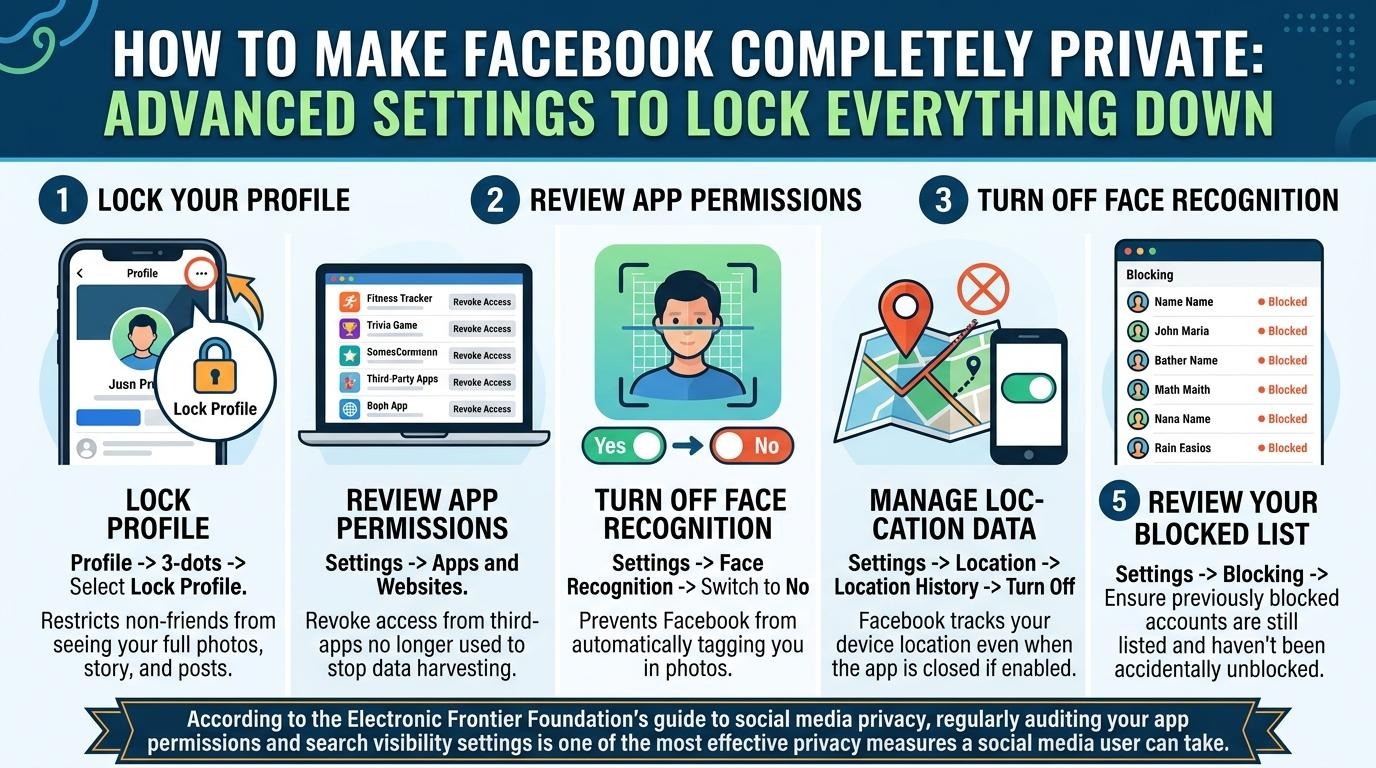
If you want to make Facebook completely private — invisible to strangers and locked even against casual snooping — here are the advanced steps most guides skip:
According to the Electronic Frontier Foundation's guide to social media privacy, regularly auditing your app permissions and search visibility settings is one of the most effective privacy measures a social media user can take.
Facebook Pages — used by creators, brands, and businesses — work differently from personal profiles. While you cannot make a Page fully private (Pages are designed for public visibility), you do have meaningful options to control your audience and limit unwanted engagement.
Here's how to make your Facebook page private at the settings level:
If your Page has been hacked, disabled, or had its admin access compromised, professional account recovery services can help you regain control quickly and securely — especially when Meta's own support channels have not been responsive.
Privacy settings are not a one-time task — they need periodic attention as Facebook regularly updates its platform and introduces new default settings. Here are best practices to stay ahead:
Even with strong privacy settings in place, accounts can still be hacked, phished, or mistakenly disabled by Facebook's automated systems. If you've lost access to your account or suspect unauthorized activity, acting quickly is critical.
Start by using Facebook's official account recovery flow at facebook.com/hacked. If that doesn't resolve the issue or your account has been fully locked out, it may be time to recover my Facebook account through a specialist service with experience navigating Meta's complex escalation process.
Yes — Facebook's "Lock Profile" feature (available on mobile) restricts non-friends from viewing your full profile, including your photos, posts, and story. You can also manually set every audience setting to "Only Me" for near-total invisibility, though your name and profile picture will always remain searchable on Facebook.
Go to Settings → Privacy → How People Find and Contact You, then disable the option that reads "Do you want search engines outside of Facebook to link to your profile?" Turning this off can take several weeks to fully remove your profile from existing search engine indexes.
No — Facebook does not notify users when someone views their profile, and there is no official feature that shows you a list of profile visitors. Any third-party app or extension claiming to show you this information is either inaccurate or a potential security risk.
Facebook's "Limit Past Posts" tool lets you change the audience for all of your previous public posts to "Friends Only" in a single action. Find it under Settings → Privacy → Your Activity → Limit the audience for old posts on your timeline. Note that this cannot be reversed post-by-post — it applies to all posts simultaneously.
Yes. Go to Settings → Privacy → How People Find and Contact You → Who can see your friends list? and change it to "Only Me." This makes your connections invisible to everyone else, including mutual friends. Hiding your friends list is especially useful for preventing social engineering attacks.
Taking control of your Facebook privacy doesn't require technical know-how — it just requires knowing where to look. By adjusting your audience settings, locking down your contact information, reviewing app permissions, and turning off search engine visibility, you can dramatically reduce your digital exposure in under 30 minutes.
Remember: privacy settings are not set-it-and-forget-it. Facebook updates its platform regularly, and periodic check-ins using the built-in Privacy Checkup tool are the best way to stay protected over time.
If your account has already been compromised, disabled, or locked out — don't wait. The sooner you act, the better your chances of full recovery. Social Rescue's team specializes in exactly these situations, helping users and businesses reclaim access when standard support channels fall short. Start with a case review and take back control of your digital presence today.
.avif)



.avif)


.jpg)
.png)
.png)
.png)